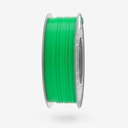





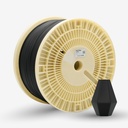
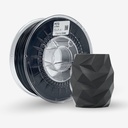

PLA Plus Olive Green 1kg – Prémiový filament pre 3D tlač
PLA Plus Pure Green je prémiový 3D tlačový filament s čistým, sviežim zeleným odtieňom, ktorý symbolizuje energiu, rovnováhu a prírodu. Tento odtieň je ideálny pre dizajnové, ekologické aj technické projekty, kde sa spája precíznosť s vizuálnou atraktivitou. PLA Plus Pure Green ponúka vynikajúcu pevnosť, hladký povrch a jednoduché spracovanie – skvelá voľba pre všetkých tvorcov, ktorí hľadajú kvalitu a živú farbu v jednom.
Hlavné výhody
- Čistá zelená farba: Jasný a vyvážený odtieň zelenej, ktorý dodáva výtlačkom prirodzený a svieži vzhľad.
- Vysoká pevnosť a pružnosť: PLA Plus je pevnejší a odolnejší než bežné PLA, čo zaručuje trvácne a stabilné výtlačky.
- Jednoduché použitie: Výborná priľnavosť, minimálne riziko deformácií a kompatibilita s väčšinou 3D tlačiarní.
- Ekologický materiál: Vyrobený z biologicky odbúrateľných, netoxických surovín, vhodný pre ekologicky uvedomelých používateľov.
Aplikácie
- Dekoratívne a interiérové projekty: Ideálny na výrobu dizajnových doplnkov, rastlinných dekorácií či modelov s prírodnou tematikou.
- Ekologické a edukačné projekty: Perfektný pre environmentálne modely, školské výstupy alebo prezentačné prototypy.
- Umelecké diela a kreatívne výtlačky: Skvelý pre figúrky, šperky alebo moderné umelecké objekty.
- Funkčné prototypy: Vhodný pre pevné, presné a zároveň esteticky atraktívne modely.
- Reklamné a prezentačné predmety: Pôsobivý vzhľad pre logá, nápisy a ukážkové výrobky.
Ideálne pre
- Dizajnérov a tvorcov, ktorí chcú sviežu a prírodnú farbu.
- Projekty zamerané na estetiku a udržateľnosť.
- Ekologicky uvedomelých používateľov hľadajúcich spoľahlivý filament.
- Kreatívne výtlačky spájajúce farbu, kvalitu a pevnosť.
PLA Plus Pure Green prináša dokonalú kombináciu odolnosti, spoľahlivosti a živej farby. Je ideálny pre všetkých, ktorí chcú, aby ich 3D výtlačky pôsobili prirodzene, sviežo a profesionálne.
| Colour | Pure Green |
| Weight | 1 kg |
| Diameter tolerance | < 0,02 mm |
| Diameter | 1,75 mm |
| Printing Temperature | 210-240°C |
| Bed Temperature | 0–60°C (prints well without a heated bed) |
| Printing Speed | 40-300 mm/s |
| Density | 1.24 g/cm³ |
| Heat resistance | up to 50°C |
PLA Plus (PLA+) – Print Settings
PLA Plus (PLA+) is an improved version of classic PLA, offering higher strength, better flexibility, and increased durability. To achieve the best printing results, it is essential to set the parameters correctly in the slicer software. For example, in OrcaSlicer https://orca-slicer.com/ for the Bambu Lab A1 Mini printer with a 0.4 mm nozzle.

Printing Temperature
Select the Printer Profile
These recommendations are for all BambuLab printers, as the most widely used printer. Professional and extra powerful printers need specific settings, especially max flow. For these cases please do not hesitate to contact us support.
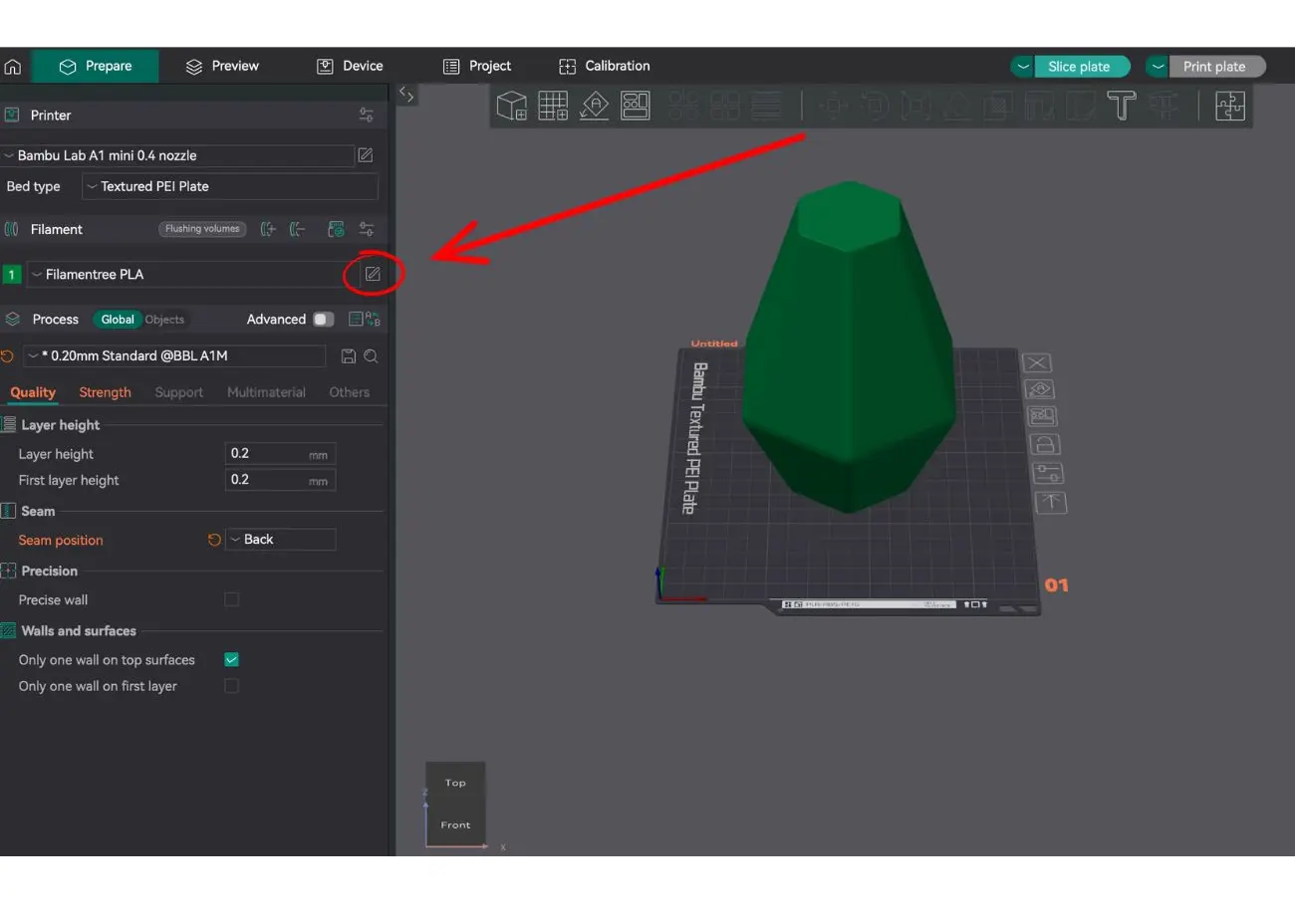
1. Select the Printer Profile
- In the top left corner, select Bambu Lap printer
- In the Bed type field, choose the appropriate bed type, such as Textured PEI Plate.
2. Edit Filament Settings
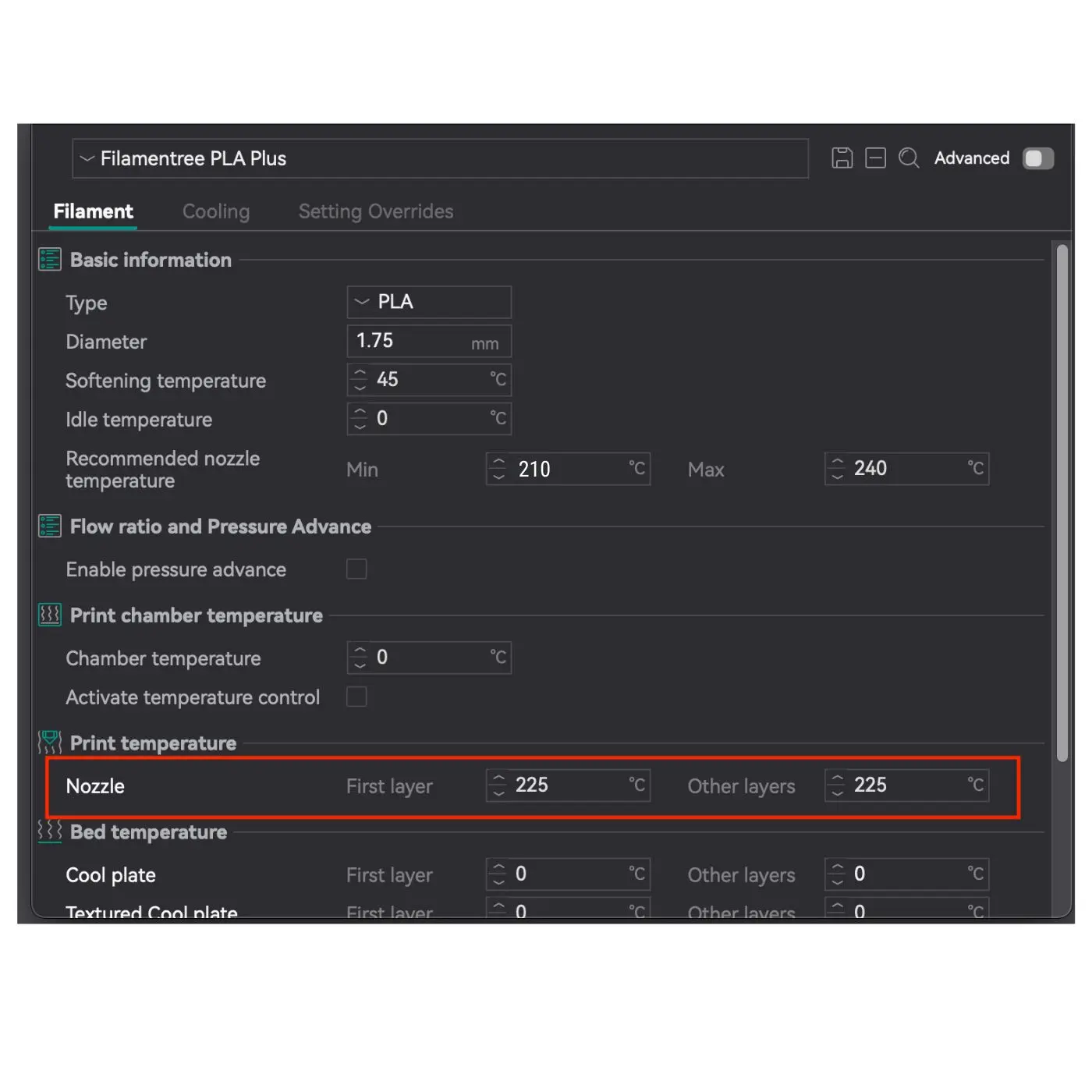
Click on the pencil icon next to the filament name (in our case, Filamentree PLA) to open the filament settings.
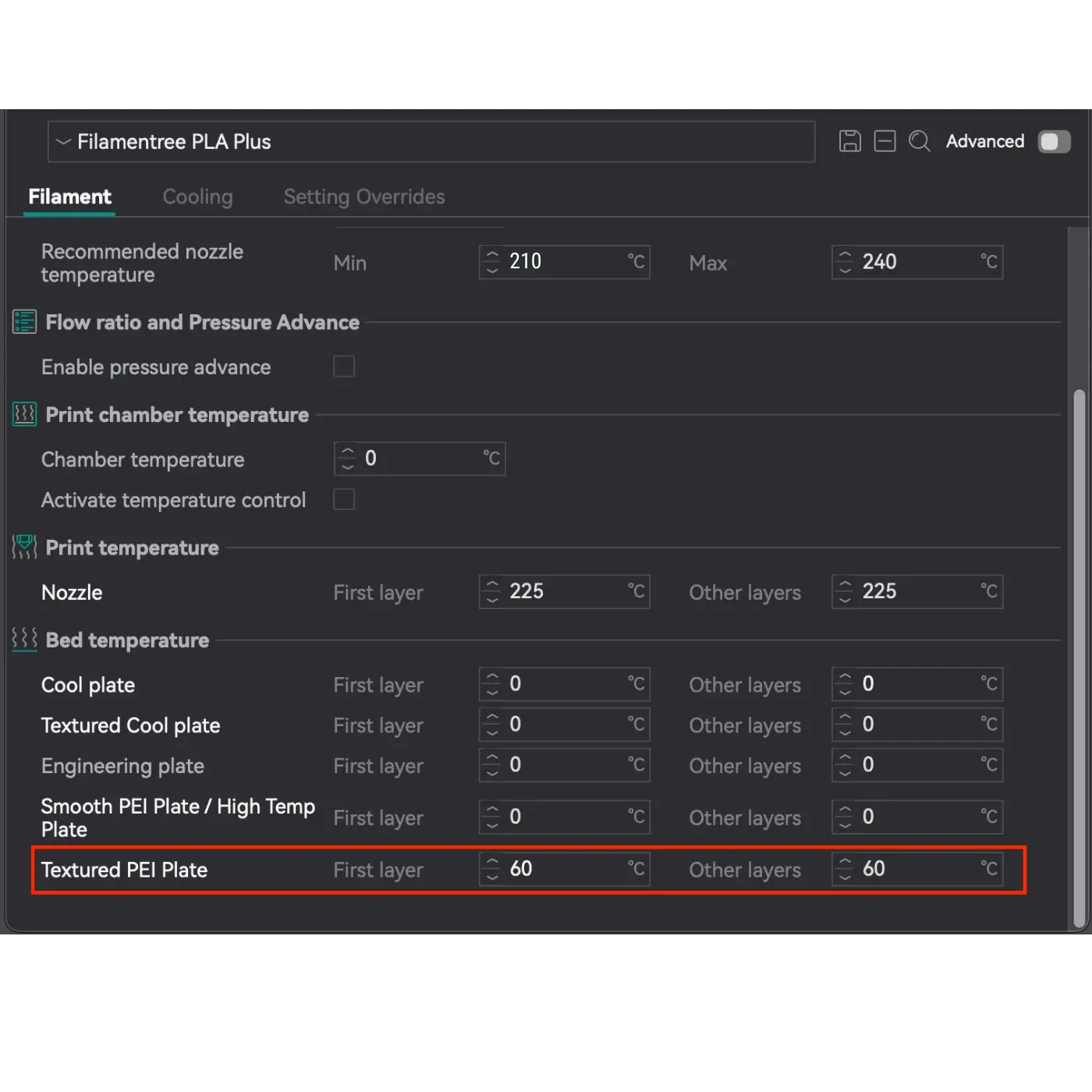
Bed Temperature
For Textured PEI Plate:
- First layer: 60°C
- Other layers: 60°C
The temperature is specifically set for the Textured PEI Plate as it provides excellent adhesion for PLA Plus at 60°C. For other types of plates (e.g., Cool Plate, Smooth Plate), the temperature remains at 0°C because they are not used in this configuration.
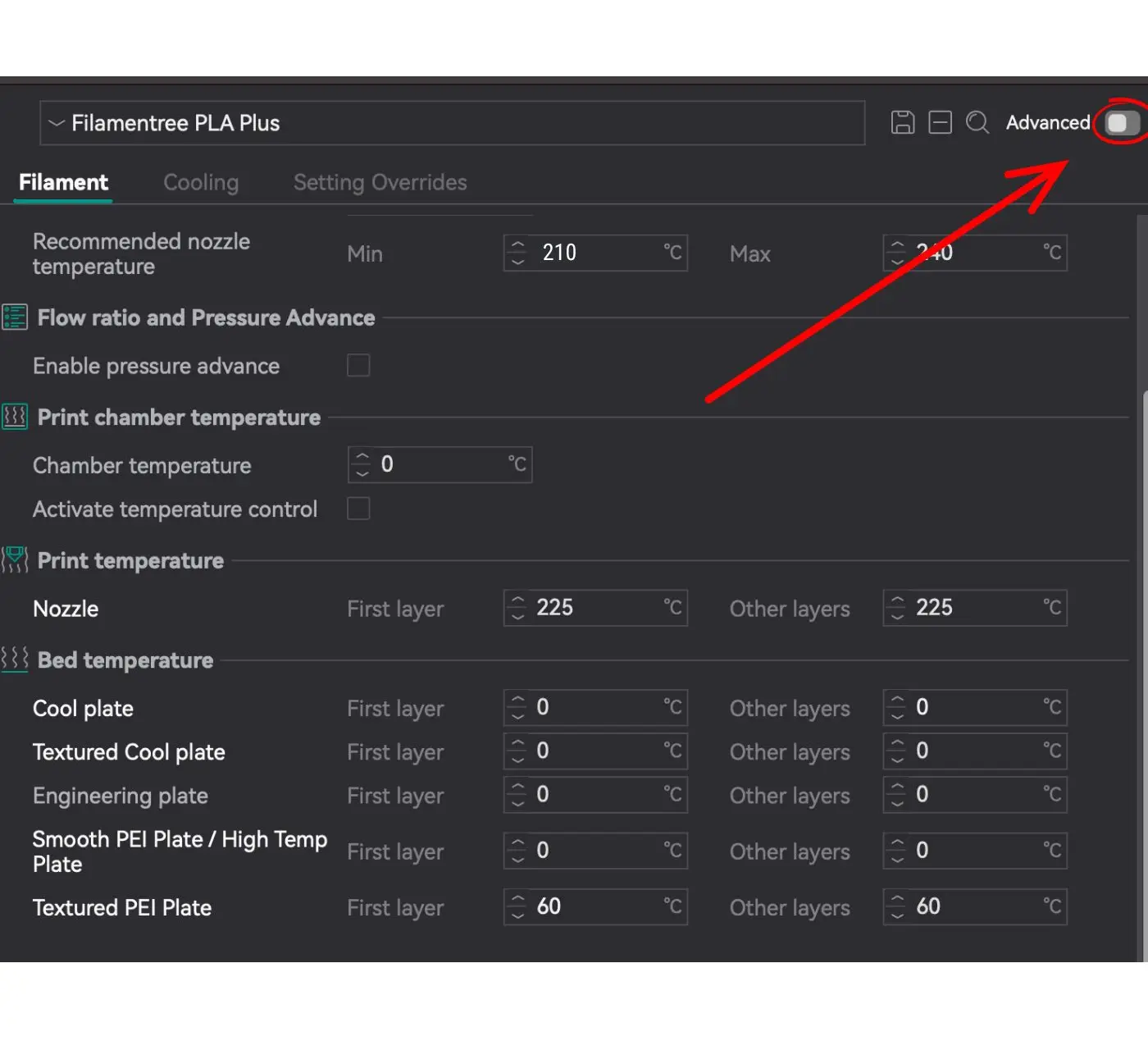
Edit Settings
PLA+ requires a higher temperature than standard PLA, so it is important to find the optimal temperature for your filament.
📌 Where to set it?
1. Open OrcaSlicer
2. Go to Filament Settings
3. Recommended Nozzle Temperature: 210 – 240 °C
👉 The value 225 °C (as shown in the red box in the image) is the middle between 210 and 240 °C and is a universal recommendation for most prints.
Printing Temperature
Select the Printer Profile
These recommendations are for all BambuLab printers, as the most widely used printer. Professional and extra powerful printers need specific settings, especially max flow. For these cases please do not hesitate to contact us support.
1. Select the Printer Profile
- In the top left corner, select Bambu Lap printer
- In the Bed type field, choose the appropriate bed type, such as Textured PEI Plate.
2. Edit Filament Settings
Click on the pencil icon next to the filament name (in our case, Filamentree PLA) to open the filament settings.
Bed Temperature
For Textured PEI Plate:
- First layer: 60°C
- Other layers: 60°C
The temperature is specifically set for the Textured PEI Plate as it provides excellent adhesion for PLA Plus at 60°C. For other types of plates (e.g., Cool Plate, Smooth Plate), the temperature remains at 0°C because they are not used in this configuration.
Edit Settings
PLA+ requires a higher temperature than standard PLA, so it is important to find the optimal temperature for your filament.
📌 Where to set it?
1. Open OrcaSlicer
2. Go to Filament Settings
3. Recommended Nozzle Temperature: 210 – 240 °C
👉 The value 225 °C (as shown in the red box in the image) is the middle between 210 and 240 °C and is a universal recommendation for most prints.
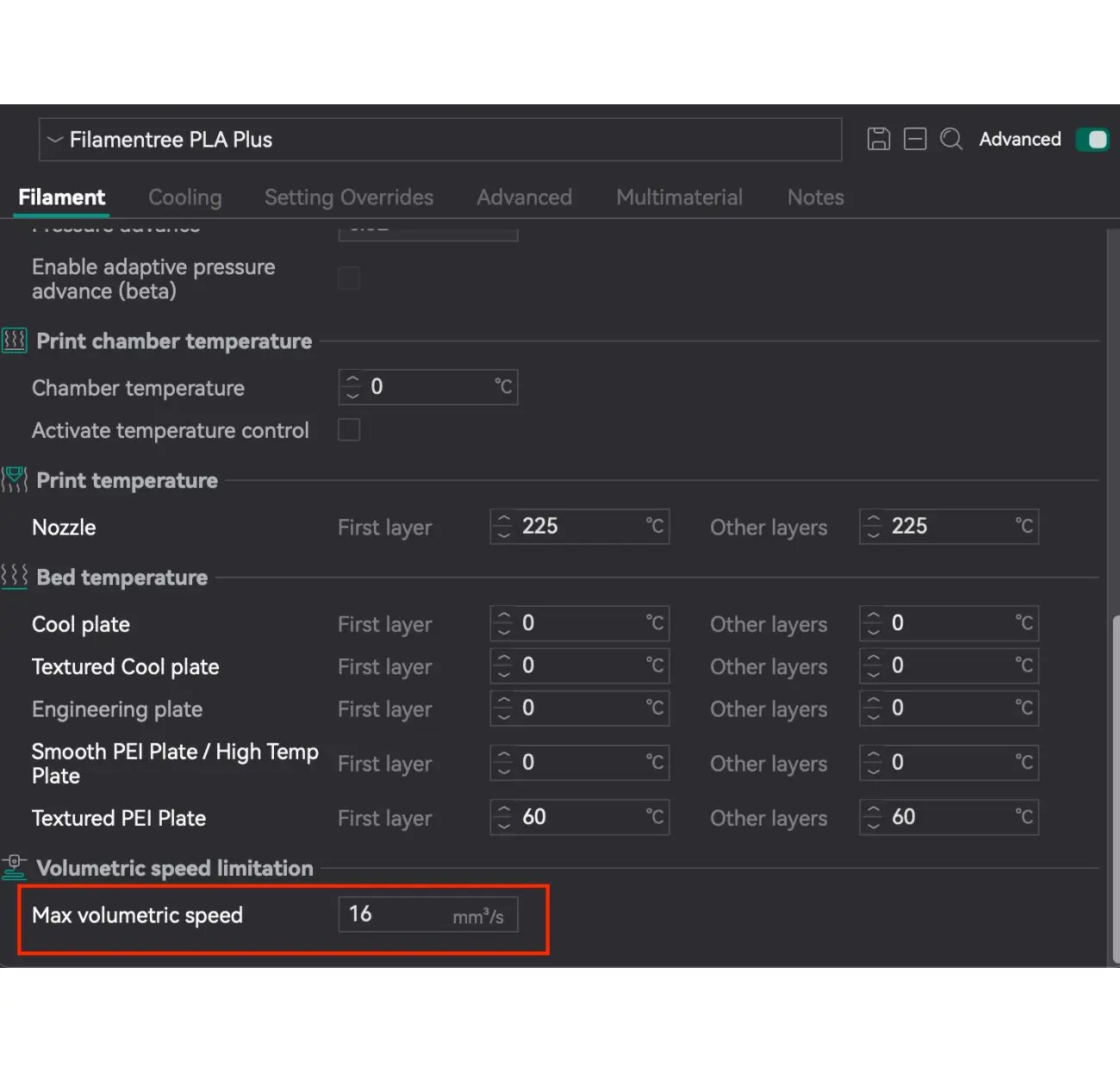
Max Volumetric Speed
In OrcaSlicer settings, Max Volumetric Speed limits the maximum volume of filament that can be extruded through the nozzle per second. This is a critical parameter that affects print quality and helps avoid issues with filament feeding.
What does this parameter mean?
- Max Volumetric Speed (MVS): Limits the rate of filament extrusion in mm³/s.
- If the value is exceeded, the extruder may struggle to feed the filament, which can lead to:
- Under-extrusion (insufficient material is deposited).
- Decreased surface quality and detail precision.
- Missed steps or damage to the extruder’s feed gears.
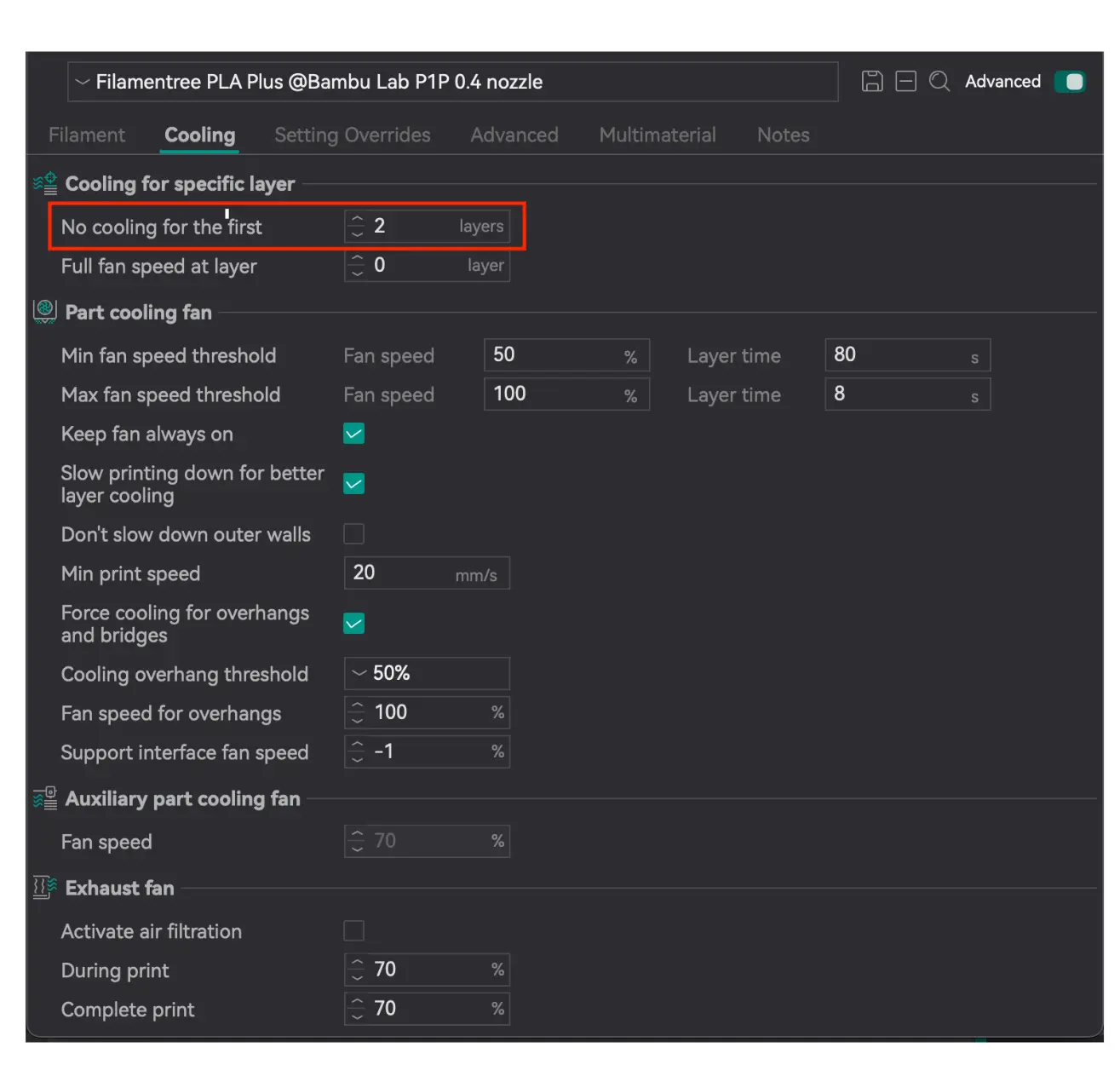
Cooling for specific layer
Setting the No cooling for the first parameter is critically important to ensure:
- Reliable adhesion of the model to the print bed: PLA Plus, like any other thermoplastic, requires good adhesion to the print bed for successful printing. If cooling is enabled on the first layers, it may result in insufficient material melting and the model detaching from the print bed.
- Avoidance of deformation or delamination of the base layers: Setting it to 2 layers provides sufficient time for the foundation to stabilize without the risk of deformation or delamination.
- A smooth transition to the cooling mode, which helps maintain high print quality throughout the process: It helps maintain overall print quality by ensuring proper adhesion of subsequent layers and compliance with the desired model standards.
This setting is standard for PLA Plus as it accounts for its thermal properties and provides optimal conditions for stable printing.
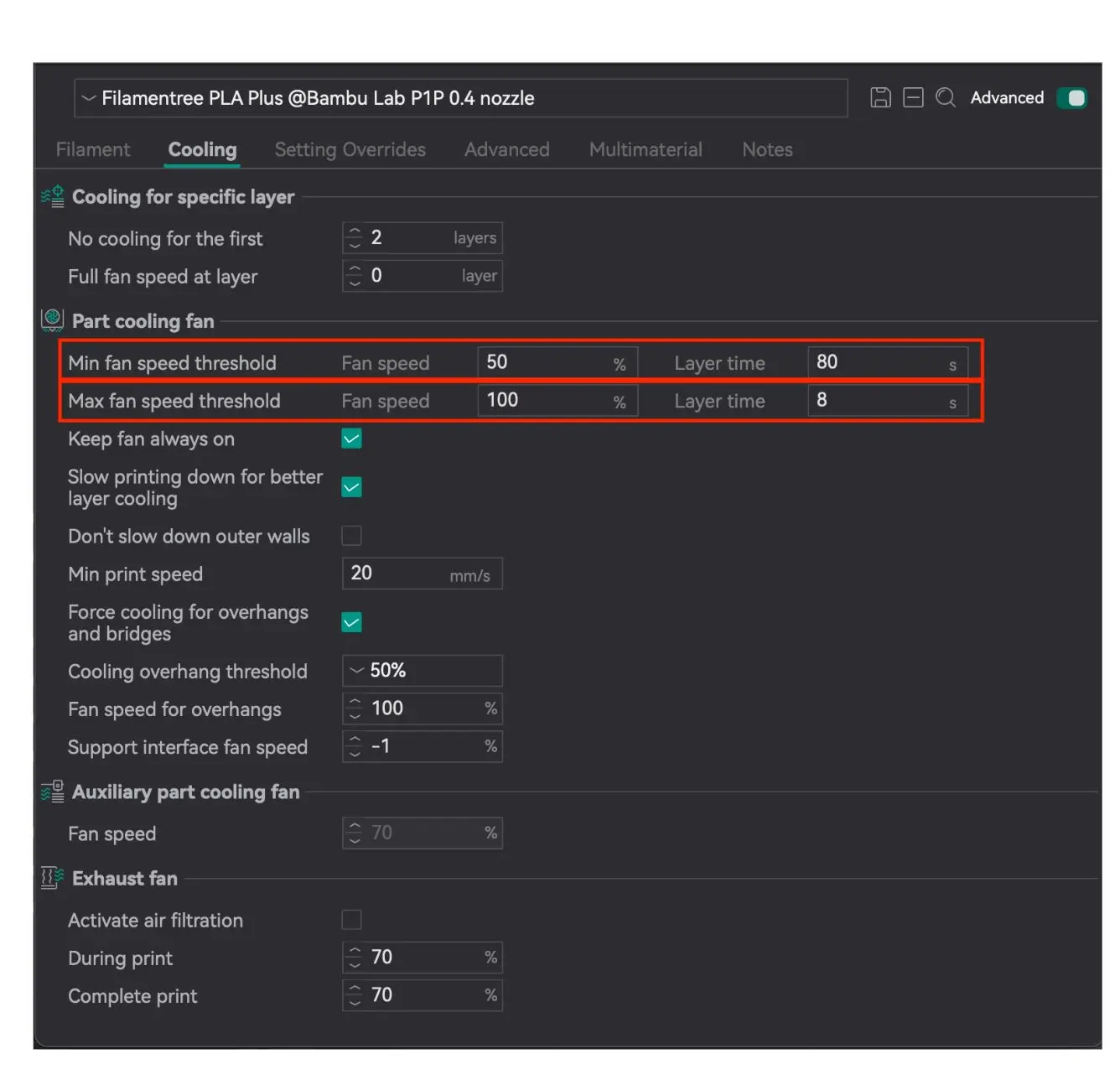
Part cooling fan
- Minimum layer time: 80 seconds (with fan speed at 50%)
Fan at 50%: This is the optimal speed for gradual cooling without excessive drying of the material.
- Maximum layer time: 8 seconds (with fan speed at 100%)
Advantage: 100% fan speed helps quickly cool large layers and ensures their stability before the next layer is applied.
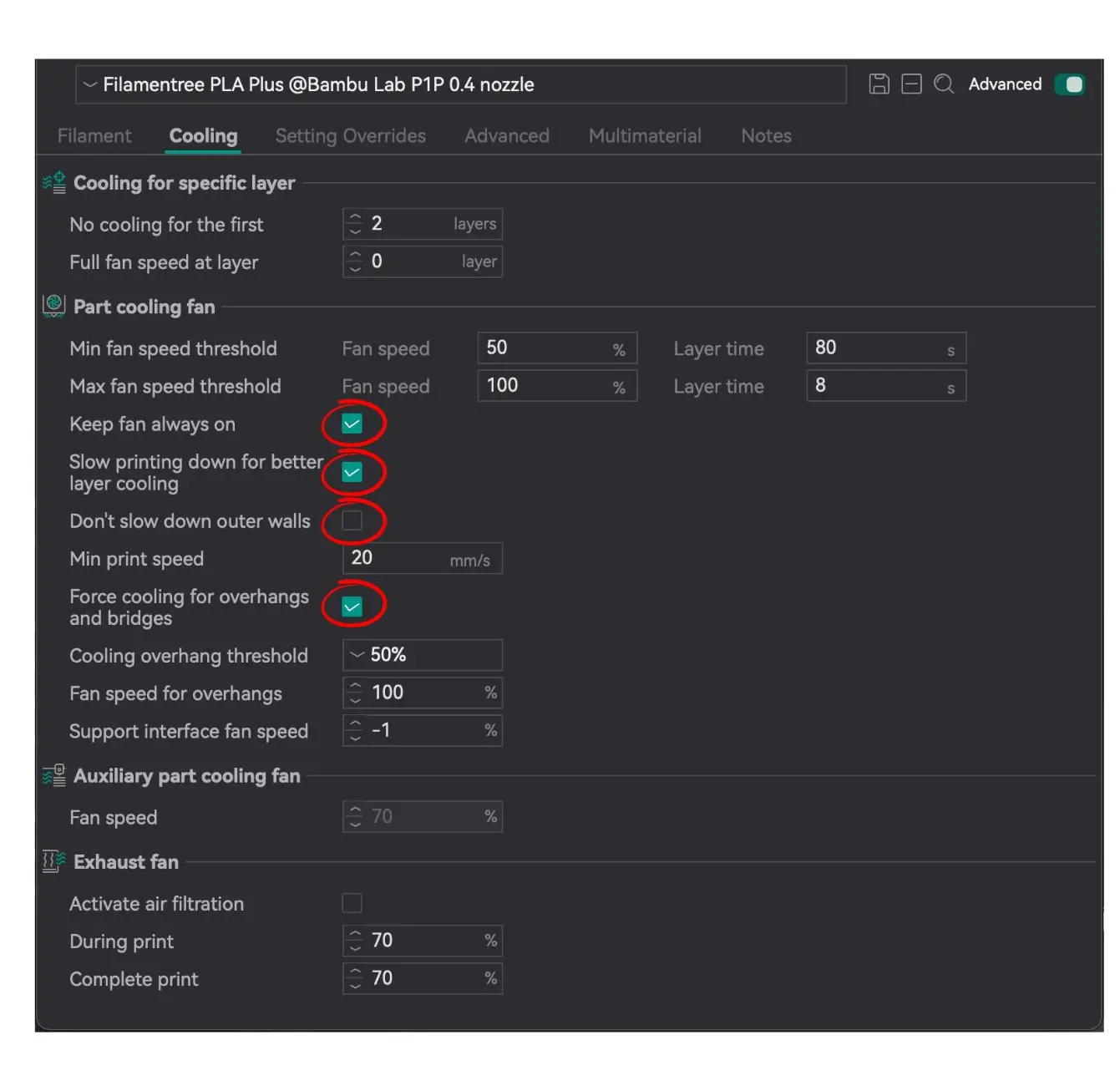
Always on:
✔️ Keep fan always on
✔️ Slow printing down for better layer cooling
✔️ Force cooling for overhangs and bridges
Always off:
✖️ Don’t slow down outer walls
Part cooling fan
- Minimum layer time: 80 seconds (with fan speed at 50%)
Fan at 50%: This is the optimal speed for gradual cooling without excessive drying of the material.
- Maximum layer time: 8 seconds (with fan speed at 100%)
Advantage: 100% fan speed helps quickly cool large layers and ensures their stability before the next layer is applied.
Always on:
✔️ Keep fan always on
✔️ Slow printing down for better layer cooling
✔️ Force cooling for overhangs and bridges
Always off:
✖️ Don’t slow down outer walls
Using the correct printing parameters for PLA Plus is critically important for achieving high-quality results. PLA Plus, as an improved version of standard PLA, requires precise settings to optimize its properties. Following the recommended settings allows you to fully leverage the benefits of PLA Plus, ensuring strong, aesthetically appealing, and durable prints.